Variables
Variables are a way to store sets of values in your worksheet. You can refrerence the variables in your steps and LCT will swap the variable name with the value.
Use variables to fill data fields with a wide variety of input values. For example use different value lengths, special characters and language specific characters.
Creating variables and sets
On any Worksheet you can click the "Worksheet Variables" button to get to the variables editor.
In there you can at first create variable defintions:
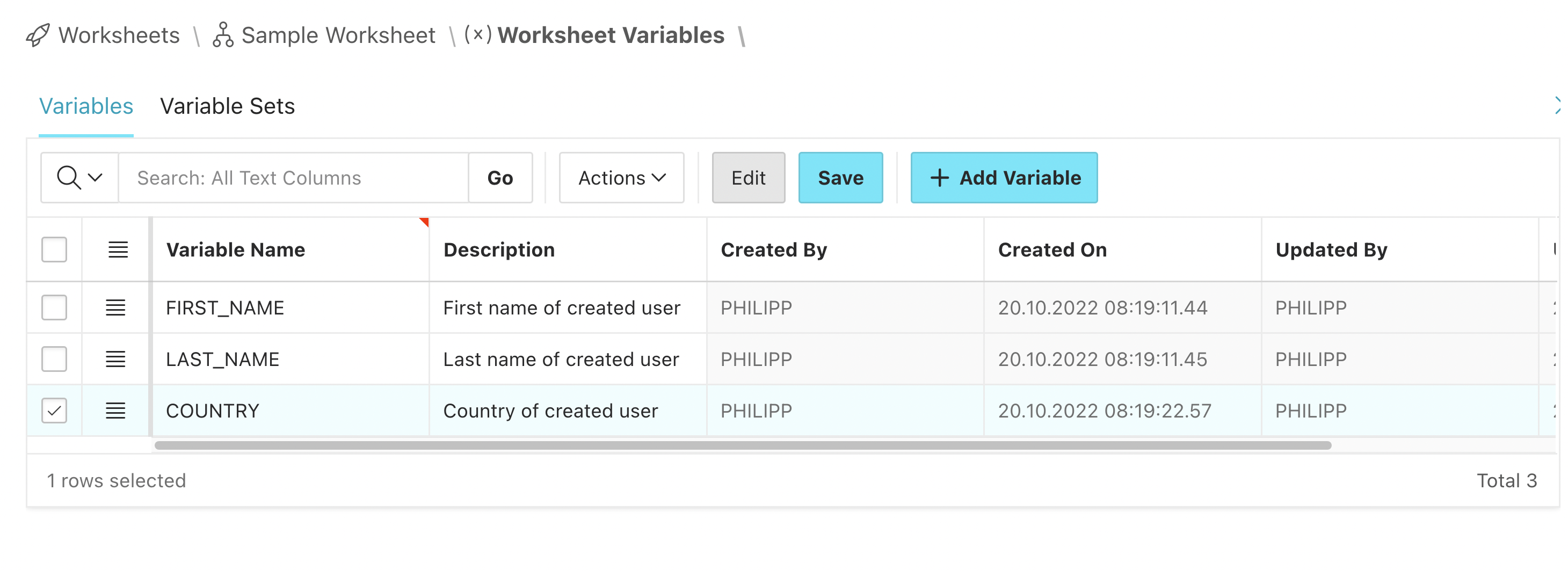
When this is done you can switch the tab to "Variable Sets" and add a new set of variables. After naming and saving it you can click on the link "Add Variables to Set".
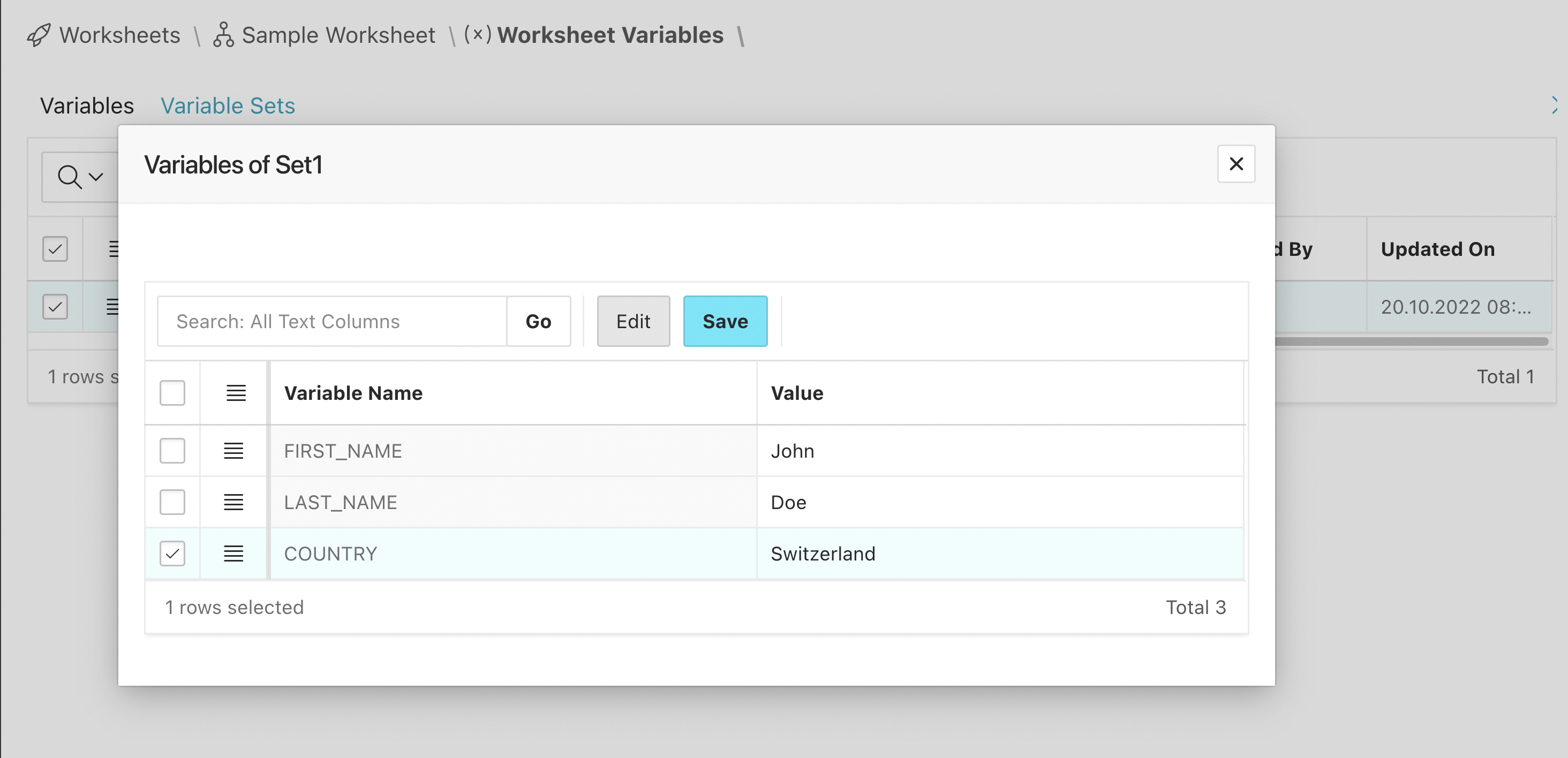
You can add as many sets as you like.
Using variables in steps
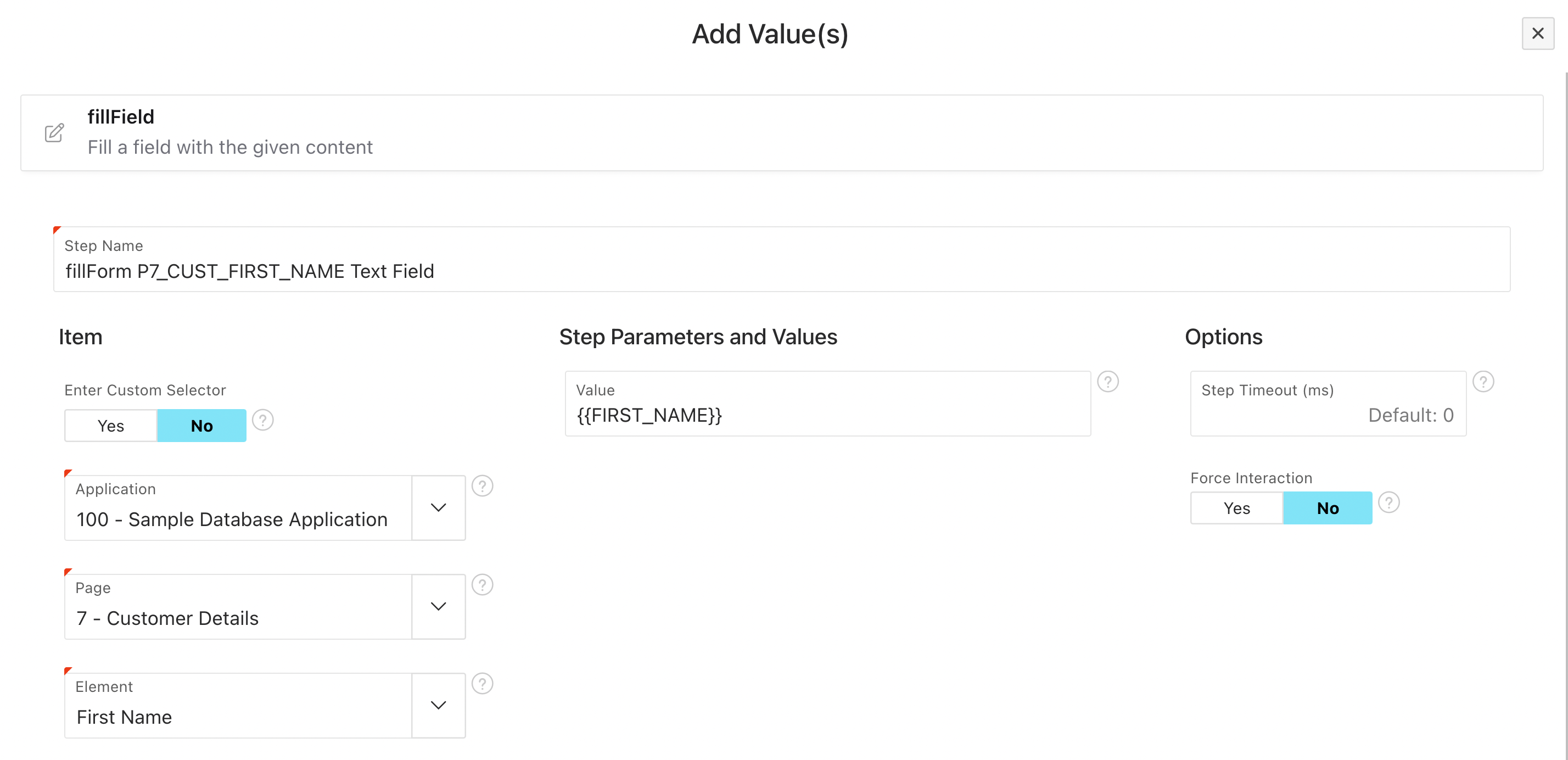
In a step in the same worksheet you can use the variables by typing the variable name surrounded by two pairs curly braces. In this example we use a fillField step with the variable reference {{FIRST_NAME}}:
Test executions
When you click "Run Worksheet" you get the option to manually select a variable set. If you don't select any a random one will be used.
Variables are randomly selected for each test suite test execution. This means that you should not put things that should not change like login credentials or selectors in there.
Variable types
The following variable types are available in LCT:
- Constants
- Assigns a value at the start of test execution, before the first Case.
- The value cannot be changed, attempting to do this results in an error.
- Use constants to centrally define recurring values like usernames, selectors etc.
- Dynamic Case Variable
- Assigns a value at the start of each Case. If you don't specify a value for a Case, the start value will be empty.
- The value can be changed using the storeTextInVar step.
- You can reference Constants in Dynamic Case Variables.
- Dynamic Worksheet Variables
- Assigns a value at the start of test execution, before the first Case.
- The value can be changed using the storeTextInVar step.
- Set Variable
- Assigns a value at the start of test execution, before the first Case.
- Set Variables are special Constants that can be used in Variable Sets.
- Use Set Variables to represent different input values, for example in forms.
Variable name rules
We allow lowercase characters (a-z), numbers (0-9), underscore _ and minus - in variable names.
The following JavaScript keywords are excluded:
awaitbooleanbreakbytecasecatchcharclassconstcontinuedeletedebuggerelseifevalexportfalsetruefinallyfornewletnullpackageprivatepublicimportsuperswitchstaticthistrytypeofvarvoidwhilewithyield
What happens if you mistype a variable name?
It just won't get replaced. In your test the literal text like {{FIRSST_NAME}} appears. So when you see this you will know that there is a typo.